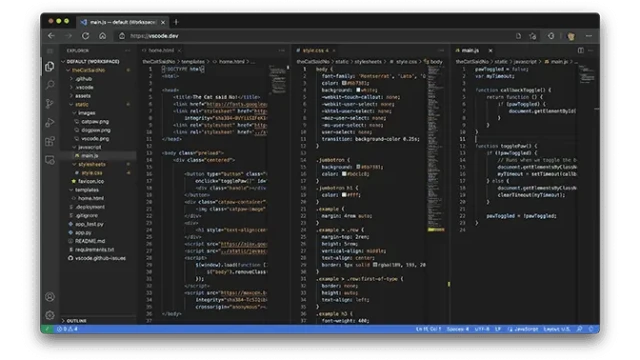
VS Code is a versatile and powerful code editor that's well-suited for a wide range of development tasks. Its combination of features, performance, and customizability has made it one of the most popular code editors among developers today.
You want a code editor that feels fast, simple, and powerful. But many tools feel too heavy or too limited. That slows you down and breaks your focus. We faced the same issue while testing different editors on real projects. Then we tried Visual Studio Code. It gave us speed, flexibility, and control without extra effort. In this guide, you will learn what it offers, what to expect, and how to get started the right way.
What Is Visual Studio Code?
Visual Studio Code is a free and lightweight code editor that lets you write and manage code in one place.
It is built by Microsoft and supports popular languages like Python, JavaScript, and C++. You get a clean workspace with useful tools ready to use. It is not a full IDE, but you can extend it based on your needs.
What languages does it support?
It supports most major languages. You can add more support through extensions based on your project.
Is VS Code better than Visual Studio?
It depends on your needs. VS Code works best for speed and flexibility. Visual Studio suits larger and more complex projects.
Is Visual Studio Code free?
Yes, it is free to download and use without limits.
If you want to see how it performs on different systems, you can explore the platform-specific guides.
Core Features
Visual Studio Code gives you essential tools that help you code faster and stay focused.
IntelliSense You get smart suggestions that help you write code with fewer mistakes.
Extensions marketplace You can add tools anytime to match your workflow and project type.
Built-in terminal You can run commands inside the editor without switching apps.
Debugging support You can find and fix issues during development with ease.
Git integration You can manage changes and track your work in one place.
Customization You can adjust the editor to fit your style and workflow.
If you want a full breakdown of each feature, you can explore the detailed features guide.
Platform Support and Compatibility
Visual Studio Code runs on all major operating systems, so you can use it on almost any device.
Windows
macOS
Linux
You get a similar experience across all platforms. The interface stays clean and easy to use. Performance can change based on your system and setup.
If you want setup details and performance tips, you can check the full platform guides for each system.
Download and Installation (Overview)
You can download Visual Studio Code for free and start using it in minutes.
The installer is simple and safe. You can also use trusted sources like Fileion if you prefer. Setup stays quick and easy, even for beginners.
If you want the exact steps with proper setup guidance, you can follow the complete installation guide.
Performance and User Experience
You get fast and smooth coding experience in real use.
We tested Visual Studio Code on different projects to see how it performs day to day. It feels lightweight when you compare it to heavy IDEs, so you can open it and start working without delay. The base version loads fast and stays responsive.
When you add many extensions, you may notice a slight drop in speed. This is normal since each extension adds extra load. Still, you get full control to keep only what you need.
You can also customize the editor to match your workflow. This helps you stay focused and work more efficiently over time.
Ease of Use
You can start using Visual Studio Code quickly, even as a beginner.
From our hands-on testing, the interface feels clean and simple. You do not face clutter, so you can focus on your code from the start. Creating or opening a project takes only a few steps.
The learning curve depends on how you use it. Basic tasks feel easy, while advanced setups take some time to learn. The good part is that you are not alone. A large community and strong documentation help you find answers fast.
This makes it a good choice if you want a tool that stays simple at first and grows with your skills.
VS Code vs Other Editors
Visual Studio Code works best if you want speed, flexibility, and modern features in one editor.
We tested it against other popular editors to see where it stands in real use.
VS Code vs Visual Studio Visual Studio Code is lighter and faster to start. It fits quick coding and flexible setups. Microsoft Visual Studio works better for large and complex projects with built-in tools.
VS Code vs Sublime Text Visual Studio Code offers more built-in features and extension support. Sublime Text feels very fast but needs extra setup for advanced use.
VS Code vs Notepad++ Visual Studio Code gives you a modern interface and advanced tools. Notepad++ stays simple and works well for basic editing tasks.
In most cases, VS Code gives you the best balance between ease of use and powerful features.
What the Community Is Saying
We also checked real discussions to see what developers think about Visual Studio Code in daily use.
On r/dotnet discussion about VS Code as flagship IDE, many users say it feels faster and less heavy than Visual Studio, especially for cross-platform work. At the same time, some developers still prefer full IDE features for complex projects.
On r/VisualStudioCode community discussions, feedback shows strong support for customization and extensions, though some beginners find setup confusing at first.
Overall, the community agrees on one thing: VS Code is flexible and fast, but your experience depends on how you set it up.
Common Issues You May Face Using Visual Studio Code
You may face a few common issues while using Visual Studio Code, especially during setup or heavy use.
From our testing, some problems show up more often than others:
Not opening The editor may fail to launch due to system or setup conflicts.
Extensions not working Some extensions may not install or run as expected.
Terminal issues The built-in terminal may not respond or load properly in some cases.
Slow performance Too many extensions or heavy projects can reduce speed.
These issues are common and usually fixable with the right steps.
You can see full troubleshooting guides with detailed fixes in the dedicated help section.
Who Should Use Visual Studio Code?
Visual Studio Code works well for a wide range of users, from beginners to experienced developers.
Beginners You can start quickly without dealing with complex setup.
Students You get a free and flexible tool for learning and practice.
Web developers You can handle HTML, CSS, JavaScript, and frameworks with ease.
Multi-language developers You can work with different languages in one place using extensions.
It fits well if you want a tool that grows with your skills.
Final Verdict
Visual Studio Code gives you a strong balance of speed, flexibility, and ease of use.
It works well for most development needs, whether you are just starting or working on real projects. You can keep it simple or expand it based on your workflow.
The real strength comes from customization. When you set it up with the right extensions, it becomes a powerful and reliable coding environment.
Hi, I’m Ishrat, Junior Content Writer at Fileion. With a strong passion for tech and a background i...
1
Followers
0
Following
Software Content Writer
Hi, I’m Ishrat, Junior Content Writer at Fileion. With a strong passion for tech and a background in SEO, digital content, and web solutions, I craft stories that connect users to the tools they need. At Fileion, I turn complex topics into clear, helpful content, making tech feel simple and accessible for everyone. Let’s write something impactful!
FAQs
Frequently Asked Questions
Yes, Visual Studio Code is free to download and use on all supported platforms.
It supports Windows, macOS, and Linux with a similar core experience.
Yes, it runs on low-end systems, but performance depends on extensions and project size.